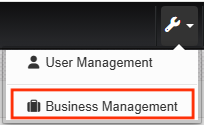
To download the syncing service, please log in to your Insight Connect account using your administrator credentials. Then, navigate to the Settings menu and select the Business Management option.
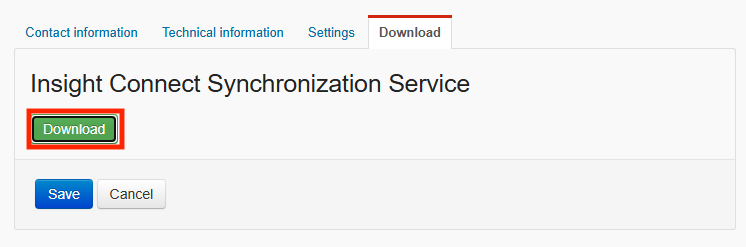
Click the Download tab, then the Download button.
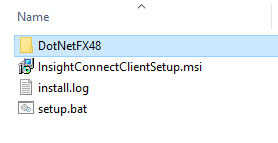
Once the file has been downloaded, please extract its contents.
Installation
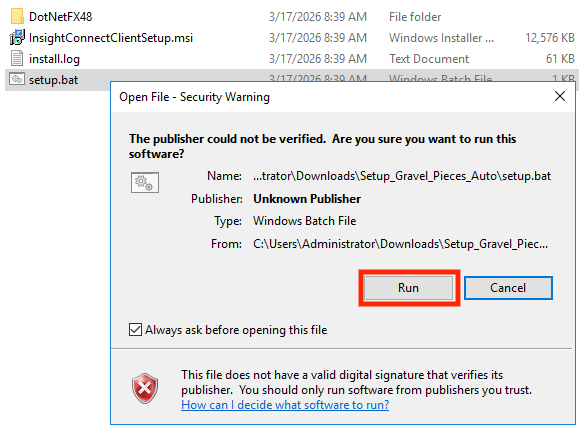
Once the file has been extracted, double-click on setup.bat to begin the installation. If prompted by a security warning, please click Run to proceed.
If prompted by a security warning, please click Run to proceed.
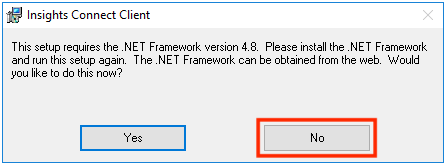
Insight Connect’s syncing service requires .NET Framework 4.8 to function properly. If this framework is not already installed on your system, please click No and refer to the Requirements section of this page for further instructions.
Once installed properly, double-click on setup.bat to begin the installation again.
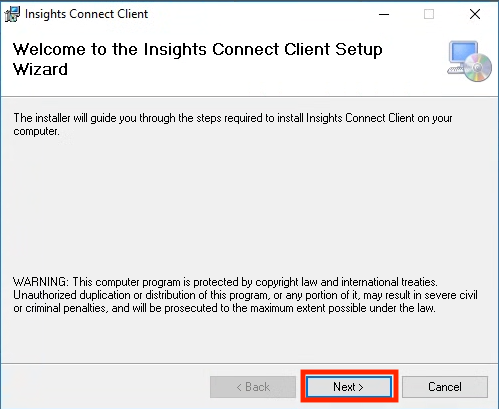
Click Next on the Welcome screen.
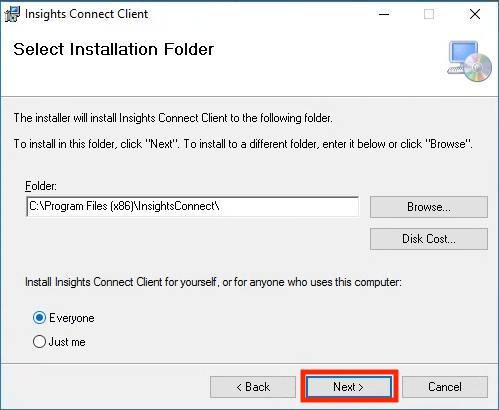
Click Next on the Installation Folder screen.
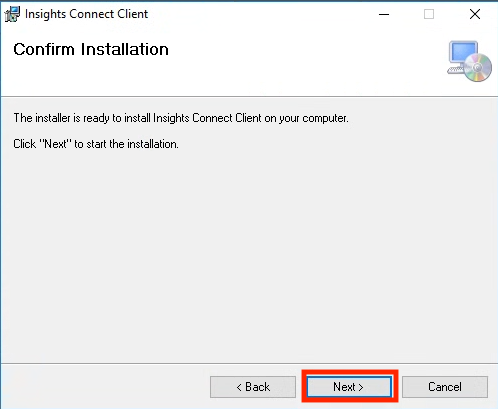
Click Next on the Confirm Installation screen.
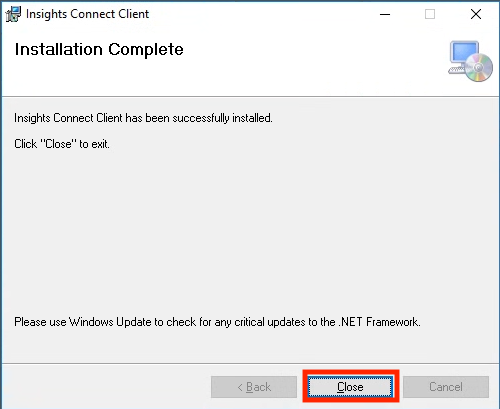
Click Close on the Installation Complete screen.
Requirements
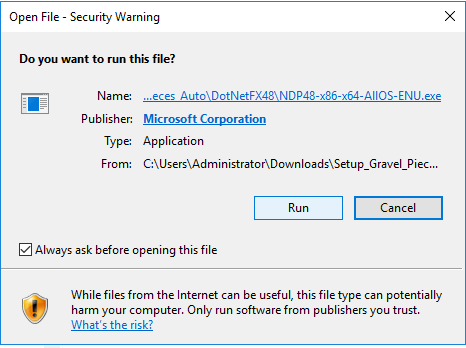
Insight Connect’s syncing service requires .NET Framework 4.8 to function properly. If this framework is not already installed on your system, please run the file NDP48-x86-x64-AllOS-ENU.exe located in the DotNetFX48 folder.
If prompted by a security warning, please click Run to proceed.
If prompted by a security warning, please click Run to proceed.
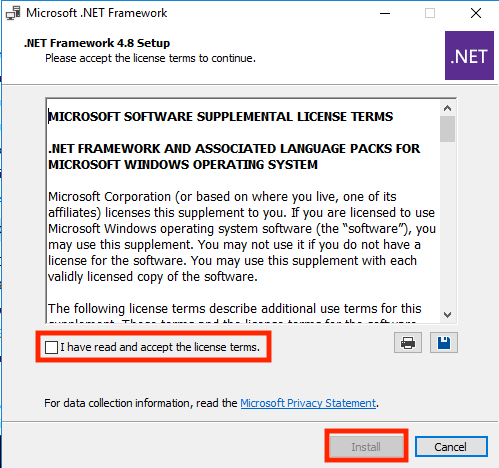
Please select the checkbox to accept the terms and conditions, then click the Install button to proceed.
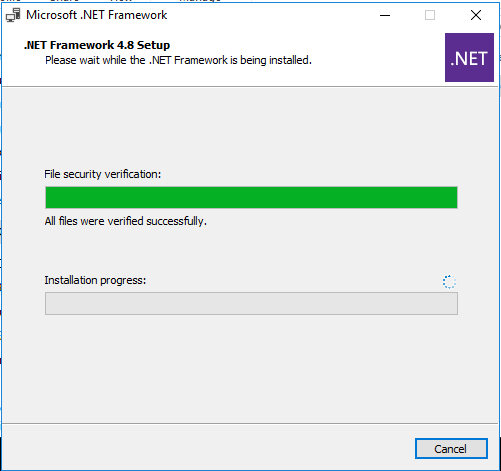
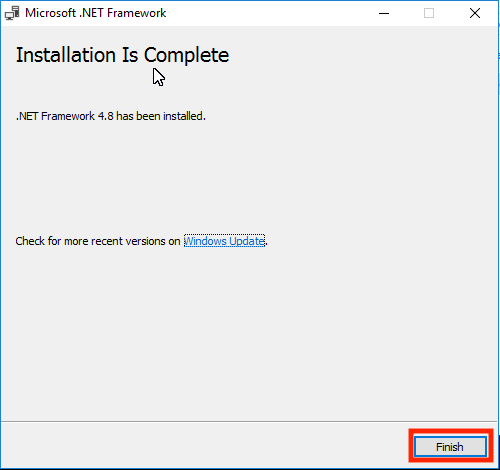
Allow the installation to complete, then click the Finish button.
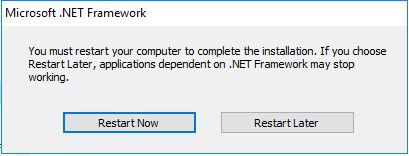
If prompted, please restart the computer.
Using Syncing Service
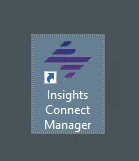
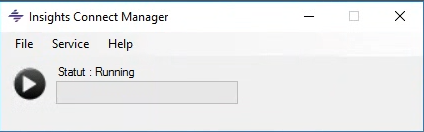
Once the Insights Connect synchronization service has been successfully installed, you may launch the interface.
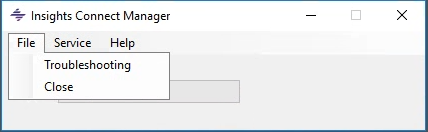
To troubleshoot any issues related to the connection between your Powerlink SQL database and the Insights Connect online services, navigate to the File menu and select Troubleshooting.
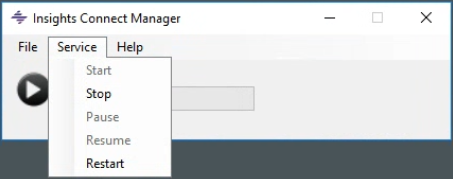
You may control the synchronization service (start or stop) by selecting the Service menu option.
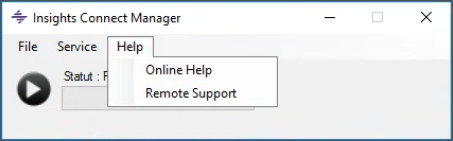
For additional guidance, you may also access the Online Help by navigating to the Help menu and selecting Online Help.
Troubleshoot
To troubleshoot any issues related to the connection between your Powerlink SQL database and the Insights Connect online services, navigate to the File menu and select Troubleshooting.
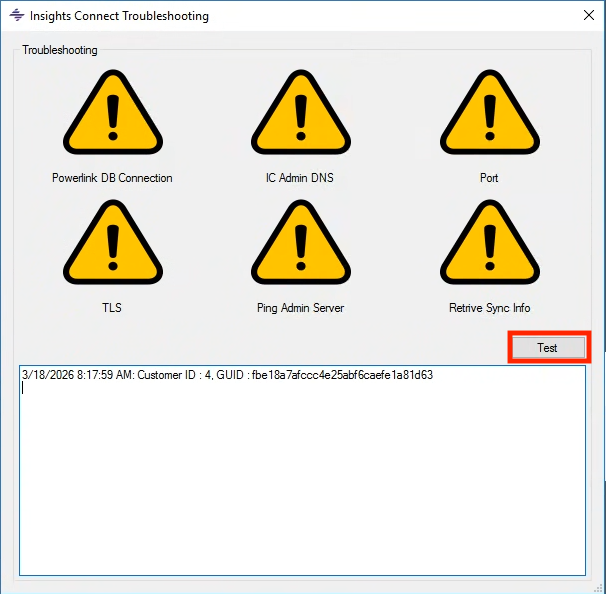
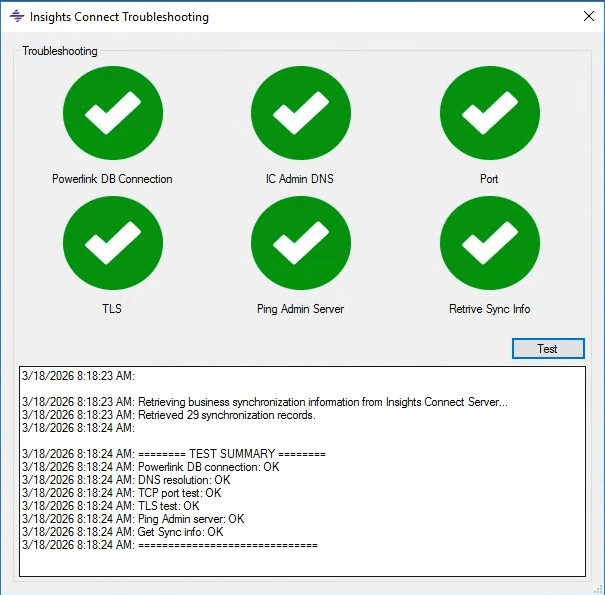
Once the Insights Connect Troubleshooting interface is open, click the Test button.
This will verify that communication between the local Powerlink SQL server and the Insights Connect online environment is functioning correctly and is properly configured.
Once the testing is complete, six green checkmarks should be displayed, confirming that all systems are functioning correctly.
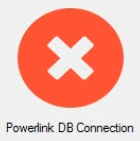
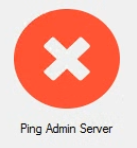
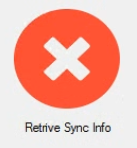
If any warnings appear, please refer to the explanations below and contact your IT team to resolve any identified issues.
The connection to the SQL Server is unavailable.
Please ensure that the SQL Server is running and that the Powerlink database is operational.
DNS is not resolving: https://pdblite.power-db.com
Make sure no security policy and/or anti-virus is blocking this.
Port 8081 needs to be open.
Make sure no security policy and/or anti-virus is block it.
TLS 2.0 must be enabled.
Please contact support.
Please contact support.
For any other troubleshootin inquiries, please contact Support.