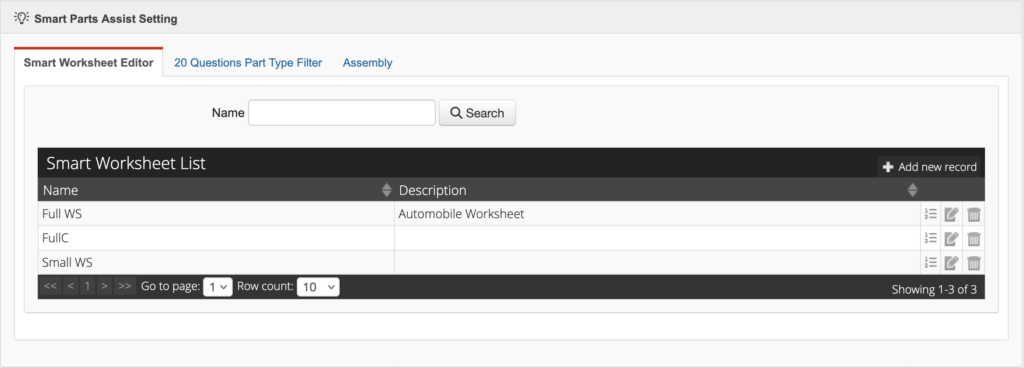
From the main application, open the Settings menu to access the the Smart Part Assist Setting option.
Select the first tab: Smart Woskeheet Editor
Click the Add new record in the upper right.
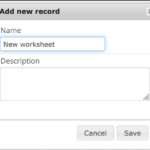
Enter a Name and a Description (optionnal).
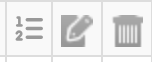
Click the Compose button to add or remove parts from the worksheet.
Click the Edit button to change the worksheet name or description.
Click the Delete button to delete the entire worksheet.
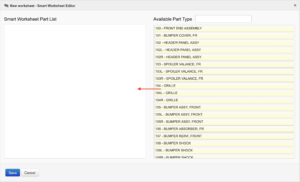
In the worksheet editor, available parts are displayed on the right, and your worksheet layout is shown on the left.
Drag and drop parts from the right panel to the left panel to include them in the worksheet and arrange them in the desired order.
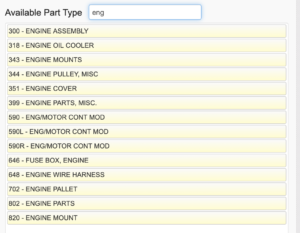
Use the keyword search to quickly find parts (for example, searching for “engine” will show all engine-related part types).
To create a more natural flow when walking around the vehicle, you can also use left‑ and right‑side part variations to take advantage of PowerDB’s split layout, grouping all left‑side parts together and all right‑side parts together.